Guide
Sentry Mode & Dashcam USB Setup Guide
Step-by-step guide to setting up the right USB drive for Tesla Sentry Mode and Dashcam recording.

Tesla's Sentry Mode and Dashcam are genuinely useful security features, but they only work if you give the car the right storage. The recording load is heavier than most people expect: the car writes video from multiple cameras continuously, so a random thumb drive from a junk drawer will throw errors, drop clips, or die within months. This guide covers exactly what to buy, how to format it, where to plug it in, and how to confirm it is actually recording.
Why Drive Choice Matters
Sentry Mode keeps several cameras writing to the drive any time the car is parked and armed, on top of the rolling Dashcam buffer while you drive. That is a constant, high-volume write workload, not the occasional file copy a normal USB stick is built for. Cheap flash drives wear out their memory cells under this duty cycle, and slow drives simply cannot keep up with the data rate, which triggers the dreaded "USB drive is too slow" message. Plan for at least 4 MB/s of sustained write speed per camera (roughly 16 MB/s minimum for a multi-camera setup) and choose hardware rated for continuous recording.
Storage Options Compared
| Storage Option | Capacity | Sustained Write | Endurance | Best For |
|---|---|---|---|---|
| USB SSD (portable) | 256GB–1TB | 200+ MB/s | Very high | Owners who record often and keep clips |
| High-endurance flash drive | 128GB–256GB | 30–80 MB/s | High | Most drivers, best value |
| Purpose-built Tesla drive | 128GB–512GB | 100+ MB/s | High | Plug-and-play, pre-formatted |
| Standard consumer USB stick | any | varies/low | Low | Avoid — fails under constant writes |
A portable dual-channel dashcam setup pairs well with an SSD for the highest reliability, while a high-endurance flash drive is the sweet spot for most owners.
USB-A vs USB-C and Port Choice
Newer Model 3 and Model Y interiors moved to USB-C front ports, while older cars used USB-A. Check your ports before buying a drive or adapter so the connector actually fits. Only the front ports (or the dedicated glovebox USB port on cars that have one) support Sentry/Dashcam recording — the rear ports are charge-only. If you want to keep a port free for phone charging, add a glove box USB hub so the drive can live hidden and out of sight inside the glovebox.
Setup Steps
- Format the drive as exFAT on your computer, or let the car do it via Controls > Safety > Format USB Drive (this erases everything).
- Create a folder named TeslaCam at the root of the drive if you formatted it yourself.
- Insert the drive into a front USB port or the glovebox port.
- Enable Sentry Mode under Controls > Safety > Sentry Mode.
- Verify by walking past the car or honking — the camera icon should show a red dot and save a clip.
Capacity and Maintenance
128GB is the practical minimum; 256GB or larger gives you days of footage before auto-delete kicks in. Heavy recorders should step up to a 512GB or 1TB SSD. Reformat the drive every few months to clear fragmentation, and replace a flash drive every 1–2 years since write cycles wear it out. For a permanent, ignition-aware install that powers the camera without a dangling cable, consider a dash cam hardwire kit.
Before You Buy
- Confirm USB-A vs USB-C for your model year
- Buy for sustained write speed, not just headline read speed
- Pick high-endurance or SSD media, never a bargain stick
- For storage comparisons and researched picks, see our best Sentry Mode storage guide
Last updated: June 2026
TeslaParts may earn a commission if you buy through links on this page, at no extra cost to you. Our editorial work is research-based unless a page documents a hands-on test.
Frequently Asked Questions
What USB drive do I need for Tesla Sentry Mode?
You need media rated for continuous recording with at least 4 MB/s of sustained write speed per camera, roughly 16 MB/s minimum for a multi-camera setup. A high-endurance flash drive is the best value for most owners, while a portable SSD is best for those who record often and keep clips; avoid bargain consumer USB sticks, which fail under constant writes.
How do I format a USB drive for Tesla Dashcam?
Format the drive as exFAT on your computer and create a folder named TeslaCam at its root, or let the car format it via Controls > Safety > Format USB Drive, which erases everything. Then insert it into a front port and enable Sentry Mode.
Which USB port does Tesla Sentry Mode use?
Only the front ports, or the dedicated glovebox USB port on cars that have one, support Sentry and Dashcam recording; the rear ports are charge-only. Note that newer Model 3 and Model Y interiors use USB-C while older cars used USB-A, so check your ports before buying a drive or adapter.
How much storage do I need for Tesla Sentry Mode?
128GB is the practical minimum, but 256GB or larger gives you days of footage before auto-delete kicks in, and heavy recorders should step up to a 512GB or 1TB SSD. Reformat the drive every few months and replace a flash drive every 1 to 2 years, since write cycles wear it out.
Related Products
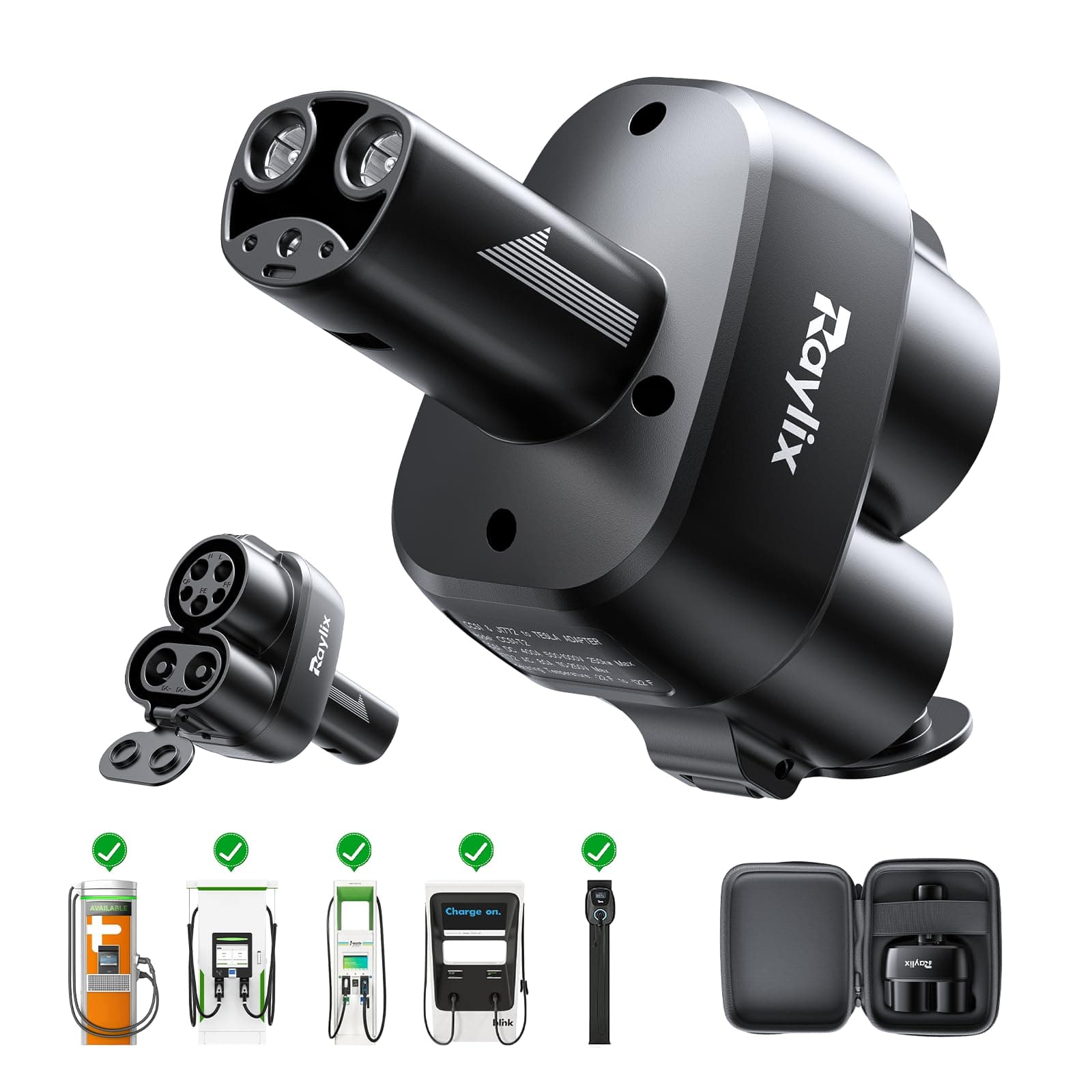
ChargeHub
J1772 to Tesla Charging Adapter
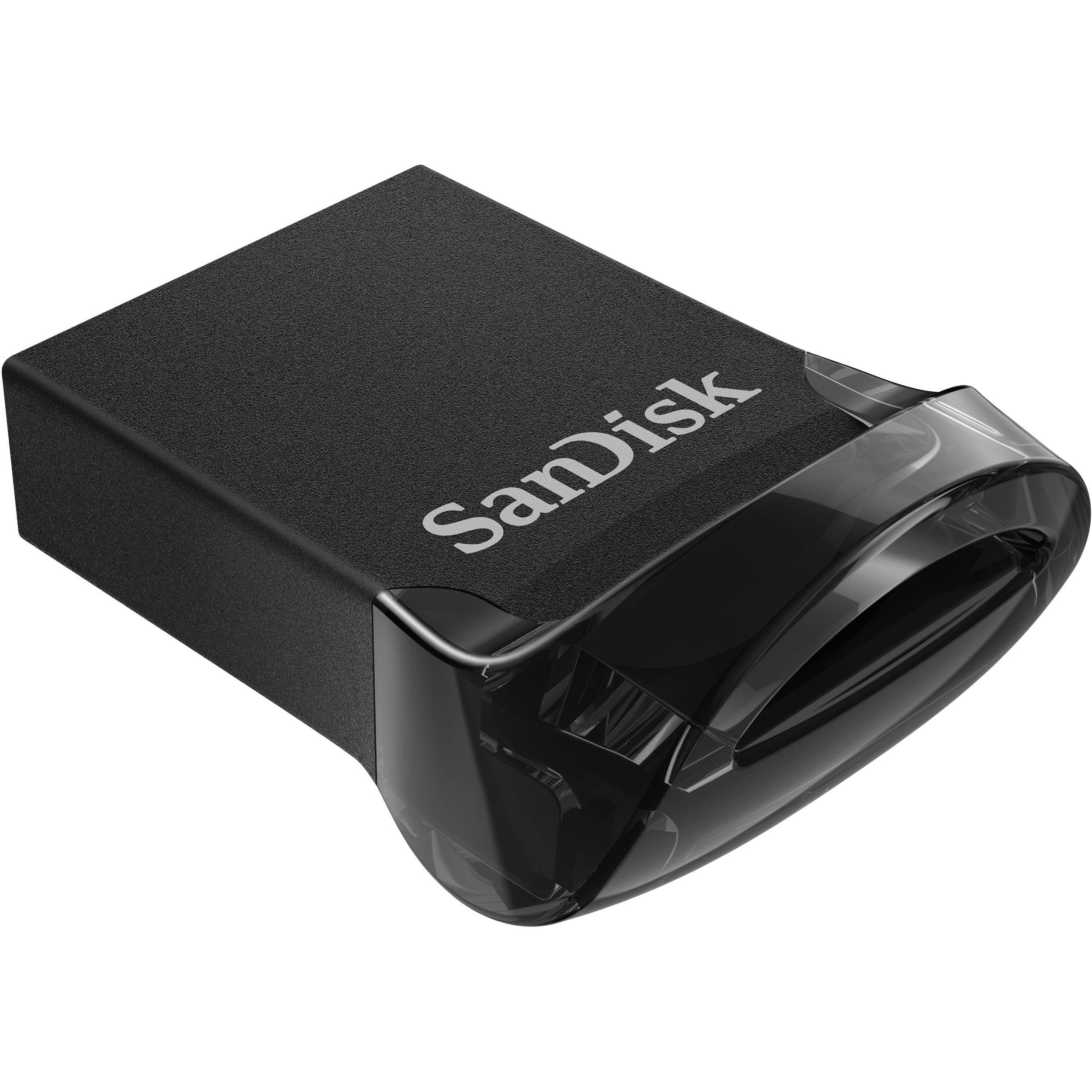
SureView
Tesla-Optimized USB Drive (256GB)
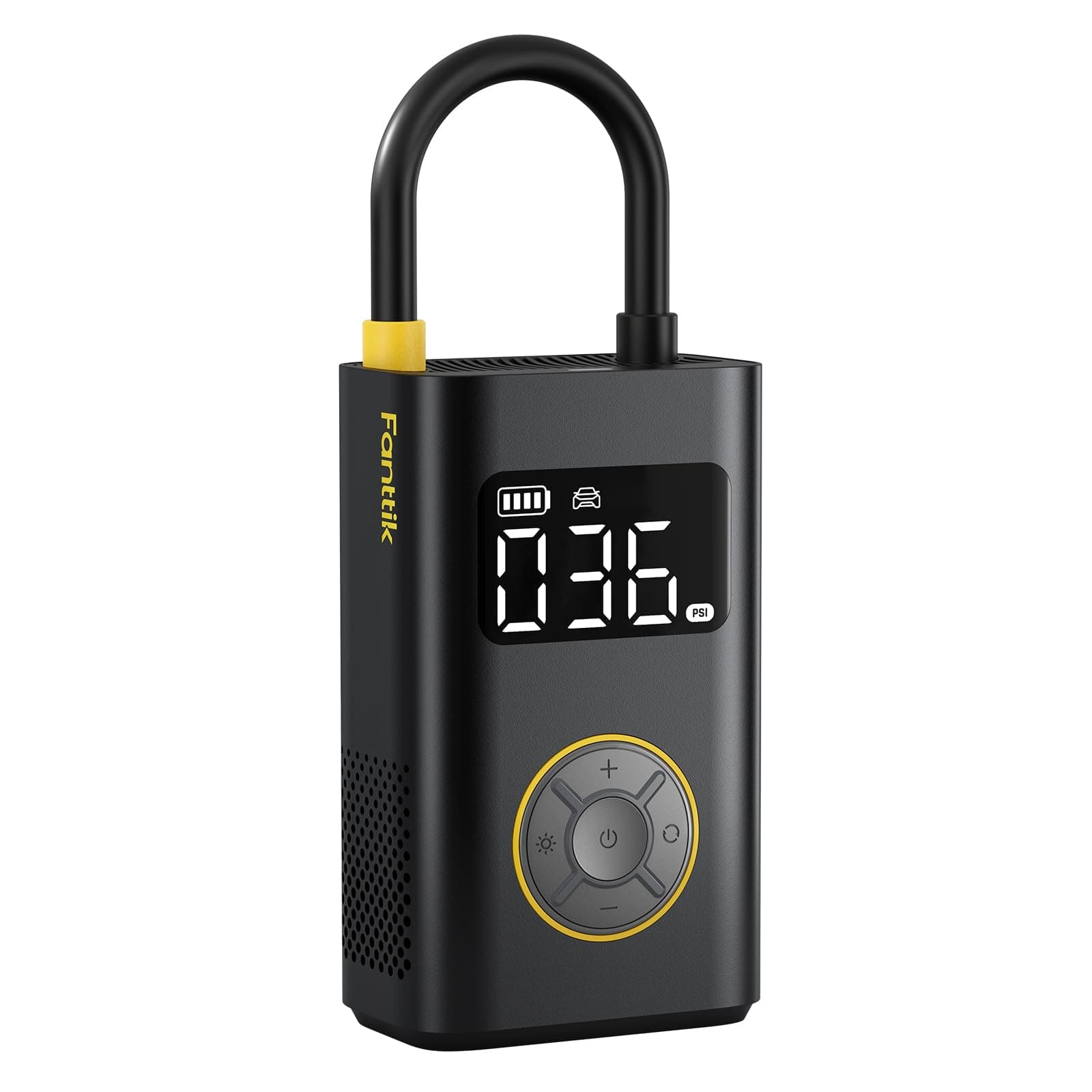
PowerPlus
Portable Tire Inflator
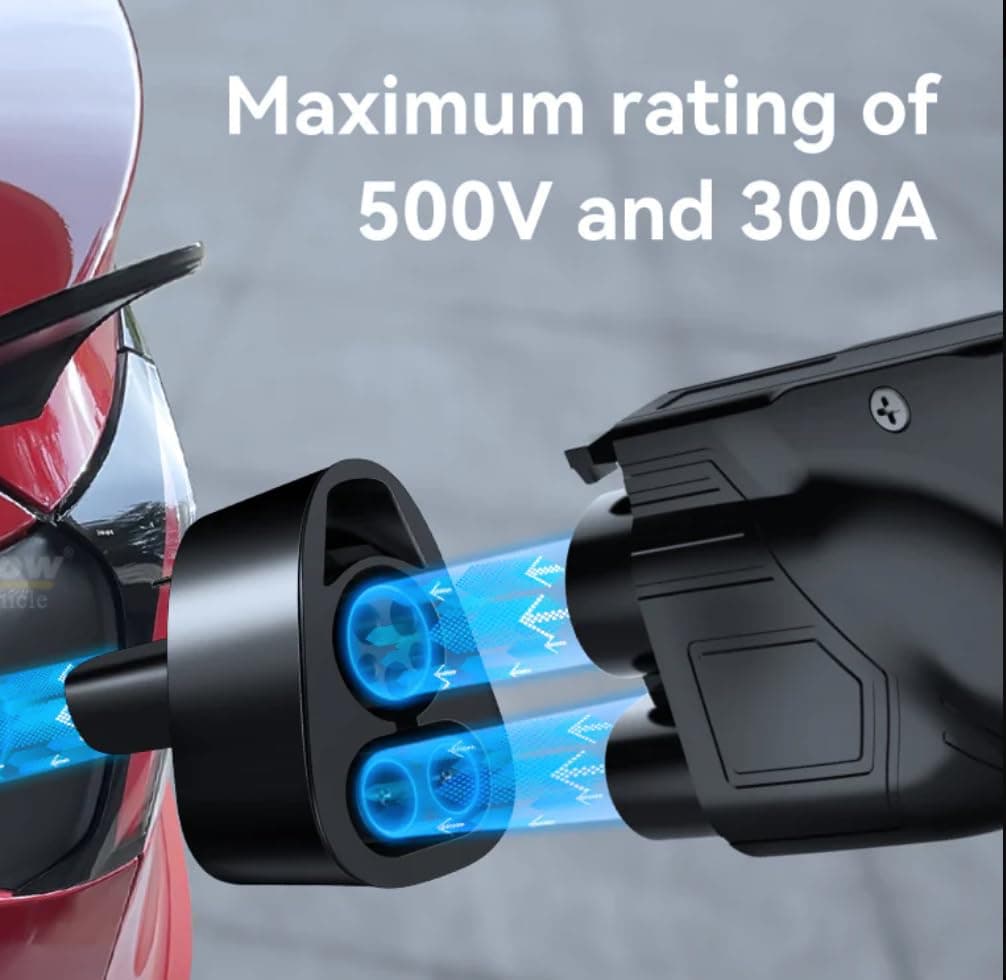
ChargeHub